Bad video calls? Fix the problem before buying a webcam.
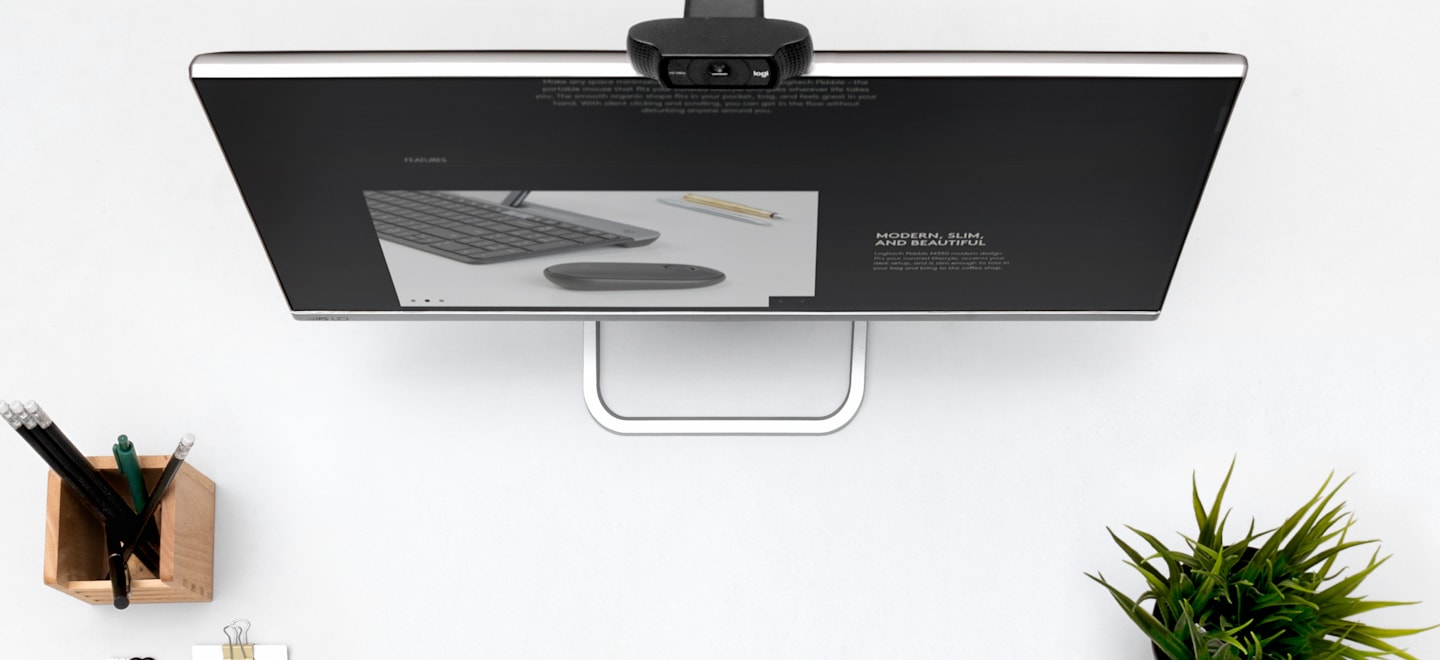
Logitech C920s mounted on a monitor. Manufacturer photograph: Logitech. We have not tested this product hands-on.
A clearer picture is useful. Being heard is essential. Find out which part of your setup is failing before replacing equipment that still works.
BudgetComputers Editorial · Updated October 21, 2026 · Research-based guidance; not hands-on testing.
The buying verdict
Fix light and positioning first. Fix unclear speech before chasing a sharper picture. Buy a webcam when your existing camera still fails in reasonable lighting, cannot sit at a useful angle, or lacks a feature your work actually needs. A new camera will not repair an unstable connection.
For interviews, classes and client calls, start with a clear face, understandable speech and a reliable connection. For recording demonstrations or streaming, resolution, framing and software controls may justify spending more.
Three upgrades to match the problem
These are options for different faults, not a shopping bundle. Try the free checks below first, then compare only the equipment you need.
Affiliate disclosure: As an Amazon Associate I earn from qualifying purchases. Prices, sellers and availability change; confirm the exact model, condition and delivered total on Amazon. These are researched options, not verified live deals or hands-on test winners.
CAMERA · ROUTINE VIDEO CALLS
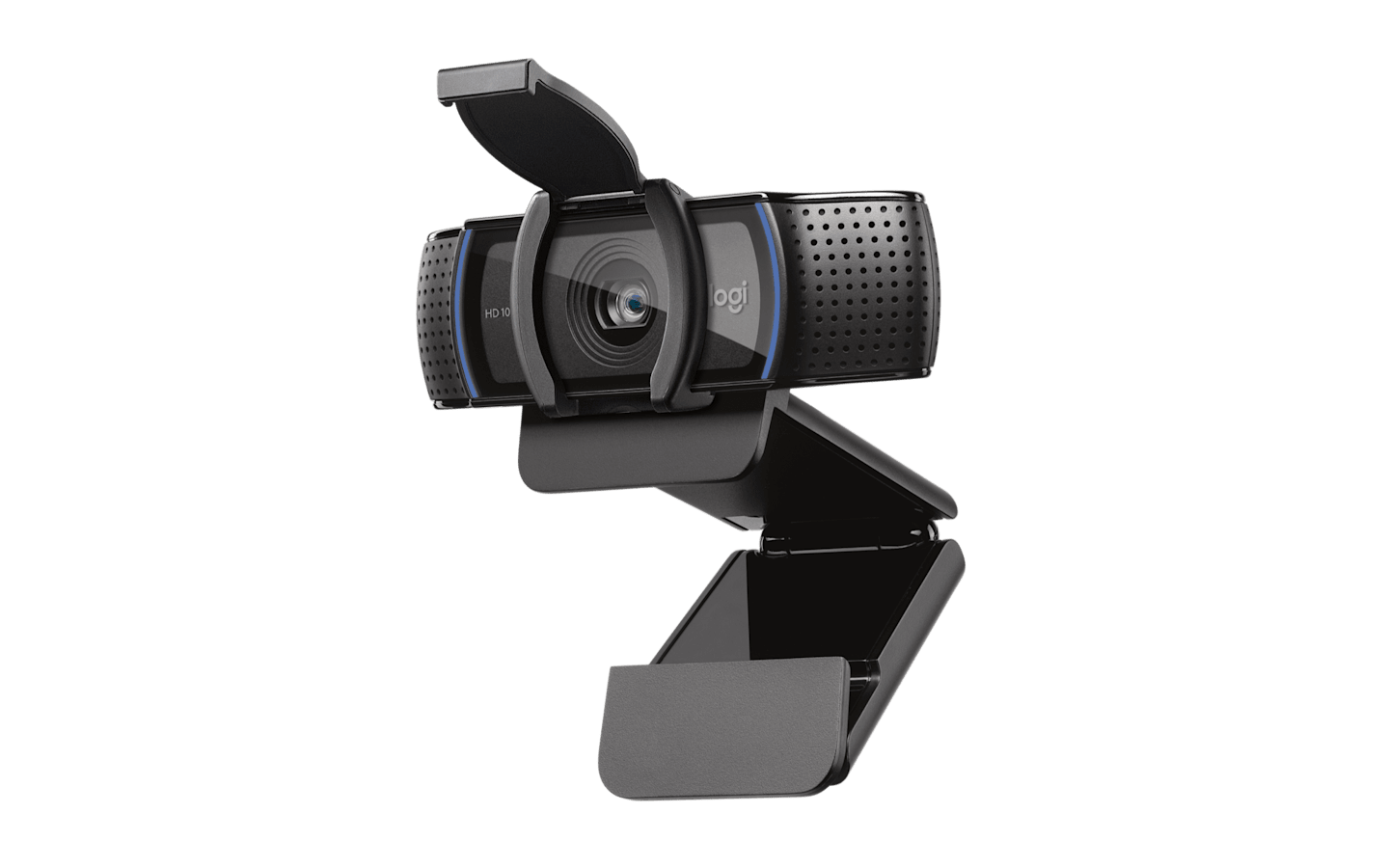
Logitech C920s
Product image: Logitech.
A 1080p/30fps webcam with a privacy shutter. A practical comparison when your built-in camera remains inadequate in reasonable lighting or cannot be positioned well.
Best fit: interviews, classes and everyday work calls that need a separate camera.
Skip it if: your current camera already looks clear, or you need 4K capture or 60fps video. Fix a dark room before replacing the camera.
A wired headset with a boom microphone and inline volume and mute controls. It puts the microphone closer to your mouth while keeping call audio out of your speakers.
Best fit: a straightforward headset for a computer with USB-A. Logitech advertises a noise-cancelling microphone; this is not active noise cancellation for your ears.
Skip it if: you need wireless freedom, a 3.5mm connection or prefer over-ear cushions. A USB-C-only computer needs a compatible adapter for this version.
A compact, diffused LED light with adjustable brightness and colour temperature. Consider it when your regular call times leave you without useful window light and an existing lamp does not give a comfortable result.
Best fit: frequent desk calls where you want more consistent lighting on your face.
Skip it if: a window or repositioned lamp already solves the problem. It does not fix poor sound, connection dropouts or a whole room’s lighting.
Check the selected devices. In your meeting app, confirm it is using the intended camera and microphone. Check privacy permissions and mute controls.
Record a short local sample. Say a few sentences at your normal working position. Look for darkness, blur, background noise and distant speech.
Move the light. Face a window or move an existing lamp in front of you, slightly to one side. Avoid a bright window directly behind your head. Clean the camera lens gently with an appropriate cloth.
Repeat in your meeting app. Use a test call where available or ask a trusted person how you look and sound. A preview does not show everything the other participant receives.
Change one thing at a time. Compare the same sentence and framing. Keep the change only if it makes a useful difference.
Microsoft documents device selection and test calls in Teams device settings. Options vary by app, account and device.
Match the purchase to the fault
What to try first—and when equipment may help
What you notice
Try first
Consider buying only if…
Your face is dark or grainy
Front lighting, less backlight and a clean lens
Lighting remains poor at your usual call times: compare a modest adjustable light before a camera
Speech sounds distant or hollow
Select the correct mic, reduce room noise, and test a headset you already own
A closer microphone gives a clear improvement: consider a comfortable headset with a boom mic
Other people hear an echo
Use headphones and avoid joining the same call on two devices with audio active
You lack comfortable headphones; a standalone microphone alone may not solve the echo
Local recording looks fine but calls break up
Check app settings, connection stability and competing uploads
Testing identifies a connection problem that requires equipment; do not assume the webcam is at fault
Camera stays soft in good light or framing is awkward
Check focus settings, distance and camera height
The camera cannot produce a usable result or cannot be positioned properly
These are diagnostic starting points, not guarantees. More than one problem can occur together.
A 4K camera does not guarantee a 4K meeting
The camera captures the picture; the meeting service decides what it can transmit. Account eligibility, settings and connection conditions can limit the result. Zoom’s HD video documentation explains its requirements. Check the service you actually use before paying for resolution you may not receive in calls.
Higher capture resolution can still help with local recordings or cropping, if the software supports it. For routine calls, judge a camera by realistic sample footage, exposure, focus and framing—not the largest number on its box.
A headset is a practical first comparison when your present mic sounds distant. Check comfort, connector compatibility, mute controls and recorded microphone samples. Test whether you can wear it for a full session.
For regular narration or recording
A separate microphone may suit a fixed desk and recording workflow. Include the stand, placement and room noise in your decision. An expensive desk microphone placed far away can still produce disappointing speech.
Do not confuse listening noise cancellation with microphone performance. Look for spoken samples made in a room similar to yours. A feature label is not evidence that callers will hear you clearly.
Before choosing a webcam
Connection: match USB-A or USB-C and confirm supported operating systems.
Framing: decide whether you need only your face or a wider demonstration area. A wider view also exposes more of your room.
Mounting: check monitor thickness, stability and whether a tripod is supported if you need one.
Controls: confirm focus, exposure and software features on your own operating system.
Privacy: look for a practical shutter or a simple way to disconnect the device.
Evidence and returns: favour independent footage and usable return terms over unsupported “professional quality” claims.
Write down one specific fault: “my voice is hard to hear,” “my face is dark,” or “the call freezes.” Run the check above and spend only on the part that still needs fixing.
Platform behaviour is supported by Zoom’s HD video requirements and Microsoft’s Teams device guidance. The troubleshooting sequence and buying priorities are BudgetComputers editorial guidance. We have not measured or ranked webcams, lights or headsets for this article.
Compare a headset with a separate microphone in our practical audio setup guide. Start with placement and a short recording before buying more equipment.