Why your USB-C cable charges the laptop but won’t run the monitor
The plugs fit. The charging light comes on. The screen stays black. Before replacing the monitor or buying a more expensive dock, check what the cable—and each port—actually supports.
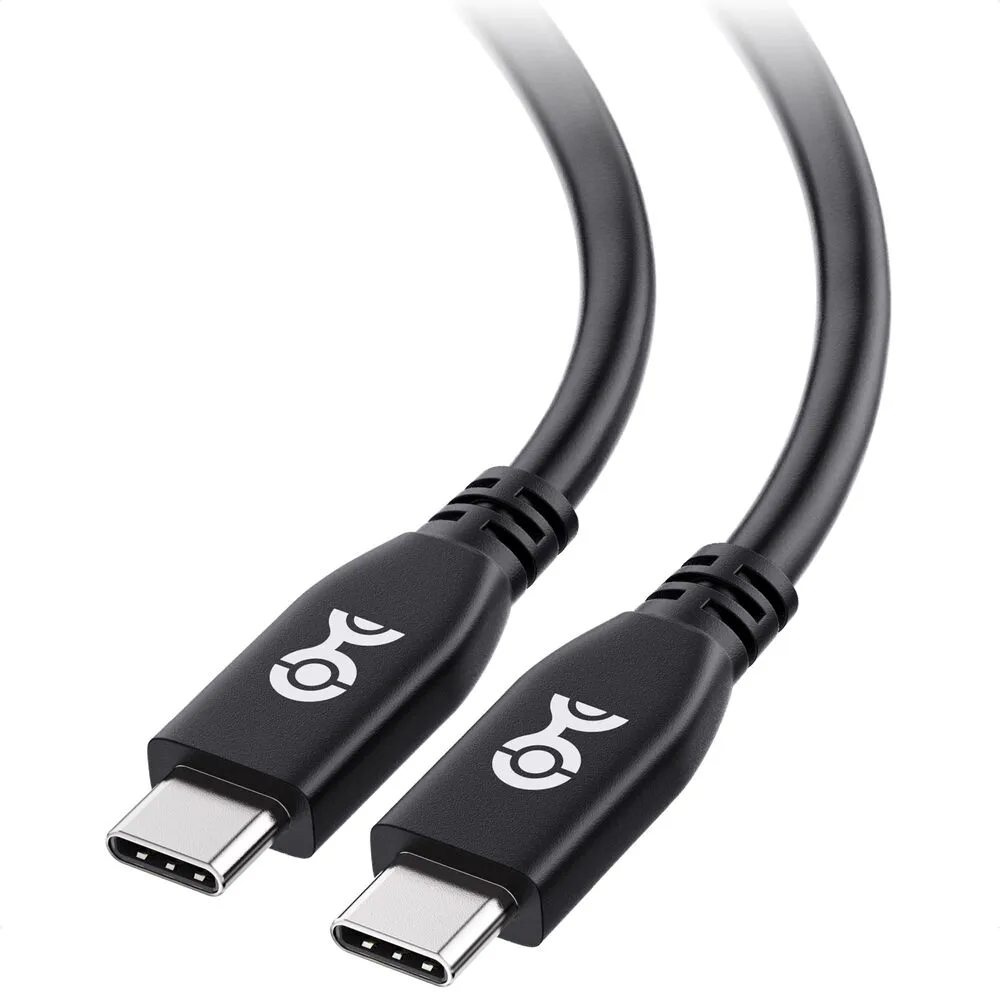
The buying decision
For charging alone, match the cable’s power rating to your equipment. For a monitor or fast external drive, check video support and data speed separately. Paying for a bigger wattage number does not solve a missing display connection.
Keep a working cable. Upgrade when you can identify the capability you need—not because the packaging promises “fast charging.”
Affiliate disclosure: As an Amazon Associate I earn from qualifying purchases. Our shopping button contains affiliate tracking. This is a compatibility guide, not a verified live deal or a lowest-price claim.
Three specifications, three different jobs
| Specification | What it tells you | What it does not promise |
|---|---|---|
| Power rating in watts | The cable’s supported charging capability | Monitor support or fast file transfers |
| Data rating in Mbps or Gbps | The supported data connection speed | That your laptop and SSD can reach it |
| Video / DisplayPort Alt Mode support | Whether the cable supports that display connection | That every USB-C port on your computer outputs video |
USB-IF’s guidance distinguishes the connector from its capabilities. A USB 2.0 USB-C cable can support Power Delivery while being limited to 480Mbps data and lacking Alt Mode video. A high charging rating is therefore not evidence that a cable will connect a display.
This is a real distinction in product documentation: Anker’s A80E5/A80E6 FAQ identifies those cables as USB 2.0 and explicitly says they do not support a display. That makes them the wrong type of cable for a direct monitor connection, regardless of their usefulness for charging.
Charging works, but the monitor is blank: check this order
- Read the laptop’s specification for the exact port. Look for DisplayPort Alt Mode or documented display support through USB4/Thunderbolt. Do not infer it from the connector’s shape.
- Check the monitor’s input. For a USB-C-to-USB-C connection, it needs a USB-C video input. If the monitor only accepts HDMI or DisplayPort, you need the appropriate video adapter or cable instead.
- Try the monitor’s supplied video cable first. Select the corresponding input in its menu. Connect directly to the laptop while troubleshooting, leaving the dock out of the chain.
- Check the replacement cable’s video specification and length. Confirm that its stated resolution and refresh-rate support match your intended setup. Then check the laptop, monitor and any dock for the same mode.
VESA’s DisplayPort FAQ explains DisplayPort over USB-C and compatible adapter connections. A cable cannot add native video output to a port that lacks it. If the port is the limitation, replacing the cable repeatedly will not fix the problem.
For an SSD, check the connection before blaming the drive
Try the SSD’s supplied cable and the computer’s documented high-speed port. A USB 2.0 cable can constrain an otherwise faster connection. Match the supported protocol and speed across the computer, drive and cable; a 40Gbps label on one component does not make the whole connection 40Gbps.
Think about the job, too. Moving large video projects repeatedly is a different purchase from occasionally backing up a few documents. Our portable SSD guide covers the drive decision. Start with the included cable before adding another item to the basket.
Cable Matters 201304 · 3.3ft / 1m, black
The current manufacturer specification lists up to 40Gbps USB4 data, DisplayPort Alt Mode video and up to 240W charging. Its own Amazon selector maps the black 1m version to ASIN B094STPLX3.
Worth considering if: you need one short desktop cable for a compatible monitor, USB4 dock or data device, and the cable you already own lacks the required capability.
Skip it if: you only need ordinary charging, require a longer reach, or your computer lacks the connection you are trying to add. Cable Matters notes that this design is thicker and less flexible than standard charging cables.
Check the 1m Cable Matters cable on AmazonBefore buying: match model, length and stated power rating. Older references to this product show 100W; verify the exact version being sold rather than assuming every listing is the current 240W specification. Check seller, condition, delivered total and returns. We are not quoting a live price or confirming stock.
Source: Cable Matters 201304 specifications. “Thunderbolt 5 compatible” does not turn this 40Gbps cable into an 80Gbps cable.
A simple habit that prevents the next wrong purchase
After confirming a cable works, label its purpose: charging, monitor or SSD/dock. Keep its model and specifications with the receipt. That is more useful than guessing from thickness, colour or the words “premium” and “fast.”
If charging is the actual problem, read our 65W charger power-sharing guide. If you need more ports, our Anker 332 versus 555 hub comparison explains why the host computer still determines what the hub can do.
Research and limits
Checked October 24, 2026 against USB-IF, VESA and manufacturer documentation. Product specifications are manufacturer claims; we have not measured signal reliability, sustained transfer speed, charging performance or durability. The retailer link follows the manufacturer’s exact-model mapping. No discount, benchmark result or universal compatibility is claimed.