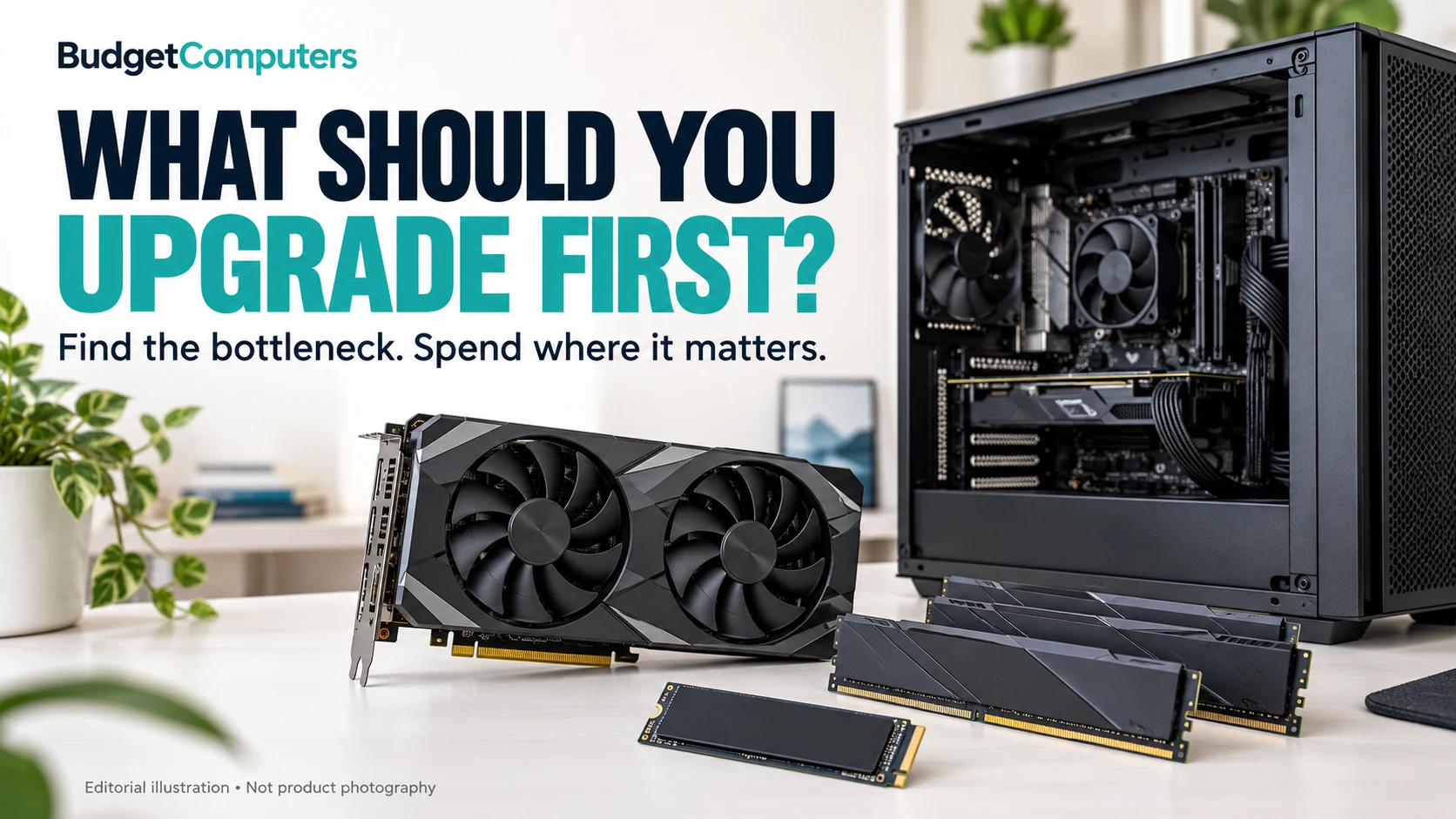
Do not buy the most exciting part first. Identify what is holding your
PC back, match the upgrade to the problem, and keep the rest of the
system balanced.
BudgetComputers Editorial · Content reviewed October 11, 2026 · Hero image added October 19, 2026 · 9-minute read
Editorial illustration, not exact product photography. Diagnose the limitation before choosing a component.
The short answer
If Windows and games take forever to load, start with an SSD. If your
PC struggles with lots of browser tabs, Discord or multitasking, check
RAM. If games have low frame rates, investigate the GPU and CPU
together—not in isolation.
First, name the problem you are trying to solve
SLOW EVERYWHERE
Long boot and loading times
Likely priority: SSD. Moving from a hard drive to an SSD is
often the biggest everyday responsiveness upgrade. It does not turn
low graphics settings into high frame rates, but it makes the whole
system feel less sluggish.
Likely priority: RAM. If gaming while using a browser,
Discord or streaming pushes memory use too high, more capacity can
help. For a modern budget gaming PC, 16GB is a practical minimum;
32GB is the stronger target when buying new memory.
LOW FPS
Games run poorly
Likely priority: GPU or CPU. Check which one is the limit
before spending. A stronger GPU helps most when graphics performance
is the issue; a CPU upgrade matters more in CPU-heavy games or when
chasing very high frame rates.
CRASHES OR RESTARTS
Unstable under load
Likely priority: diagnosis, not a shopping cart. Check
temperatures, power-supply capacity, drivers and component
compatibility before assuming a new part is the answer.
The upgrade order we recommend
1 — SSD
Choose this when: the PC still uses a hard drive, storage is
almost full, or apps and games spend too long loading. Do not expect:
a large increase in graphics frame rate just from an SSD.
2 — RAM
Choose this when: everyday multitasking is rough, games stutter
with background apps open, or you only have 8GB. Check first:
your motherboard/laptop supports the capacity and type you plan to
buy.
3 — GPU
Choose this when: your game is graphics-limited and you want
higher FPS, better settings or a higher resolution. Check first:
power supply, physical case clearance, connector requirements and CPU
balance.
4 — CPU / platform
Choose this when: the CPU is clearly limiting the games or work
you actually do—or when your older platform blocks worthwhile
upgrades. Remember: a CPU change can
mean motherboard and RAM costs too.
What to buy next: sensible upgrade starting points
These are research-based starting points, not universal drop-in parts.
Confirm your motherboard interface, RAM generation, case clearance and
power supply before ordering.
Affiliate disclosure: As an Amazon Associate I earn
from qualifying purchases. Prices and availability can change; verify
the final listing on Amazon.
OLDER PC · SATA STORAGE
Samsung 870 EVO 1TB SATA SSD
A practical route for a desktop or laptop that accepts a 2.5-inch
SATA drive but does not support an NVMe M.2 SSD.
Check first: a free 2.5-inch bay, SATA data connection and power
connection.
One expensive part cannot rescue an unbalanced system. Intel explains
that CPU and GPU performance should complement each other; storage and
display choices also affect how the PC feels in use. A high-refresh
monitor is wasted if the PC cannot produce the frame rates you want, and
a powerful GPU can be held back by an older CPU.
Five-minute upgrade check
Write down your CPU, GPU, RAM capacity, storage type and
power-supply model.
State the one problem you want fixed: loading, multitasking, frame
rate, image quality or stability.
Check game requirements and monitor resolution/refresh rate.
Confirm physical and electrical compatibility before buying.
Only then compare current products and prices.
Sources and limitations
This guide is educational, not a diagnosis of your particular PC.
Component choice depends on compatibility, condition, workload and
budget. Microsoft notes that RAM and storage affect what a Windows PC
can do, while DirectStorage also has specific NVMe SSD and DirectX 12
GPU requirements. Intel explains why balanced components matter and why
an SSD improves access times rather than graphics performance.