Memory and storage costs are under pressure. Your next purchase should still solve a problem you actually have.
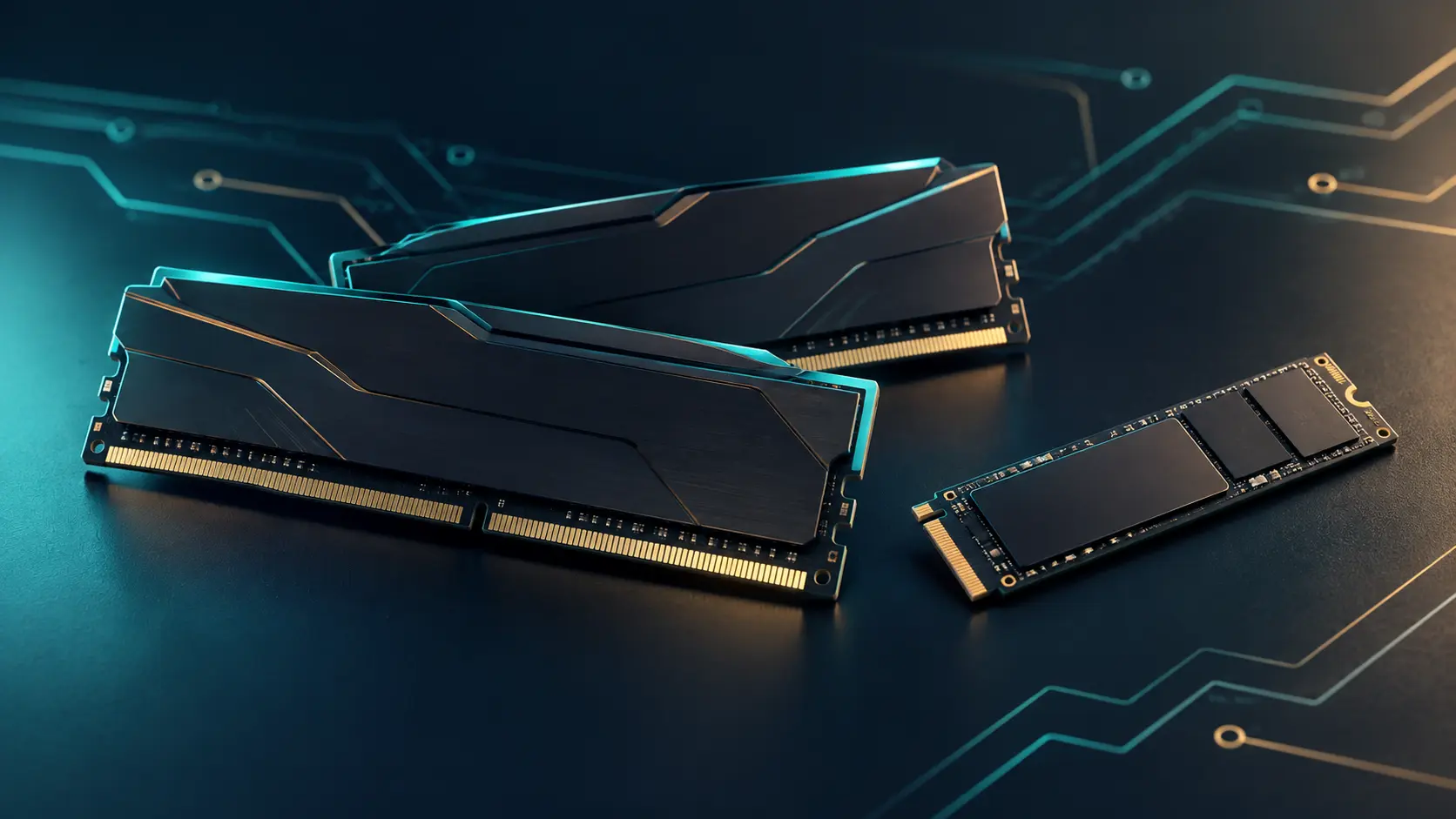
RAM and storage solve different problems. AI-generated editorial illustration; not a product photograph or compatibility diagram.
By BudgetComputers · October 16, 2026 · US buying focus · Research-based guidance, not our own hardware testing.
As an Amazon Associate I earn from qualifying purchases. We may also earn commissions through eBay links. Retailer searches below are not verified deals.
The quick verdict
Buy the upgrade that removes your current limitation. Investigate RAM when your usual work runs short of memory. Investigate storage when capacity or the current drive is the problem. If the machine already meets your needs, waiting is a reasonable choice.
RAM is working space for active tasks; an SSD stores your system, applications and files. More of one does not automatically compensate for too little of the other.
What rising memory prices actually mean for buyers
In its September 30 outlook, TrendForce forecast fourth-quarter increases of 10–15% for conventional DRAM contract prices and 15–20% for NAND flash contract prices. It also described weak consumer demand and existing client-SSD inventories that can moderate purchasing pressure.
Micron’s September 30 results separately identify AI-driven demand as a business driver. That supports the wider demand story; it does not independently confirm TrendForce’s percentages or establish a future retail price for a particular drive.
Our interpretation: compare real offers carefully, but do not stockpile parts because of a headline. Contract forecasts are not a promise that every Amazon or eBay listing will rise by the same percentage. We have no evidence that sub-$600 PC builds have universally disappeared.
A starting point for diagnosis—not a performance guarantee
What you notice
Check first
Possible next step
Slowdowns with your usual apps open
Memory use while the slowdown is happening; also check other active processes.
Compatible RAM if memory capacity is the demonstrated limit.
Repeatedly deleting files to make room
Storage usage, files you still need and available drive slots.
More suitable storage capacity.
An older hard-drive-based system feels slow
Drive health, interface and whether other faults explain the symptoms.
An appropriate SSD may be worth investigating.
Low game FPS but sufficient memory and storage
Game settings, GPU/CPU limits and temperatures.
Diagnose further before ordering RAM or an SSD.
Everything you need works comfortably
Your actual reason for upgrading.
Keep the money until there is a clear benefit.
On Windows, observe Task Manager during the workload that bothers you. A single high-use reading is a clue, not a diagnosis. Background updates, software problems and other bottlenecks can produce similar symptoms.
For students and office users, try your normal browser, calls and documents together. For gamers, check the particular game. For creators, use a representative project rather than a completely empty editor.
Before replacing a drive: make a separate backup of important files. If you use device encryption, make sure you can access your recovery key. Decide whether you will clone the existing drive or perform a fresh installation before removing it.
Pay for useful capacity and performance
For a budget system, start by comparing compatible Gen4 SSDs if your machine supports them. Consider a Gen5 premium only when your system and workload can use it. We have not measured a universal gaming benefit or declared one generation the best buy at every price.
A large sequential-speed number is only one specification. Look for testing of the applications you use, the exact capacity, sustained transfers, warranty and endurance terms. A TLC or QLC label alone is not a complete product review.
Price-per-capacity example—not a live offer
Imagine two otherwise suitable SSDs: 1TB for $80 and 2TB for $120. Their advertised-capacity cost is $80/TB and $60/TB respectively. The 2TB option costs less per TB, but still requires $40 more today.
Choose the larger one only if that extra capacity is useful and affordable. Lower unit cost is not a saving when you buy capacity you do not need.
Compare the final delivered price, condition, seller, returns and warranty. Add any enclosure, installation service or other required item. For international purchases, include import costs and whether warranty service is available where you live.
Our buying rule: write one sentence before checkout: “This upgrade fixes ___, is compatible with ___, and costs ___ in total.” If you cannot fill it in, pause.
Ready to compare? Start with the right category
These are affiliate retailer searches, not individually tested recommendations, live deals or stock confirmations. Results can contain incompatible products and different sellers. Confirm the exact specification before purchase.
Storage capacity
For systems confirmed to support M.2 2280 PCIe Gen4 NVMe drives. Compare 1TB and 2TB options against your actual storage needs.
No current price, discount or coupon has been verified for these searches. US shopping is the reference; availability and eligibility differ by country.
How this guide was researched
We cross-checked the market theme against TrendForce’s research and Micron’s own reporting, then checked upgrade compatibility against Kingston documentation. Manufacturer documentation explains compatibility; it is not independent proof of best value. The decision framework and hypothetical cost comparison are BudgetComputers editorial analysis.
We have not tested the linked search results, measured your PC, or established which category converts best for our audience. We will add specific offers only when their model, price and terms can be checked.
Bring your exact PC model, current RAM, storage, budget, country and the slowdown you want to fix. That gives the community something useful to work with.